> ## Documentation Index
> Fetch the complete documentation index at: https://docs.softisp.ug/llms.txt
> Use this file to discover all available pages before exploring further.
# Payment Methods / Gateways
> Enable and configure the payment gateways your customers can use
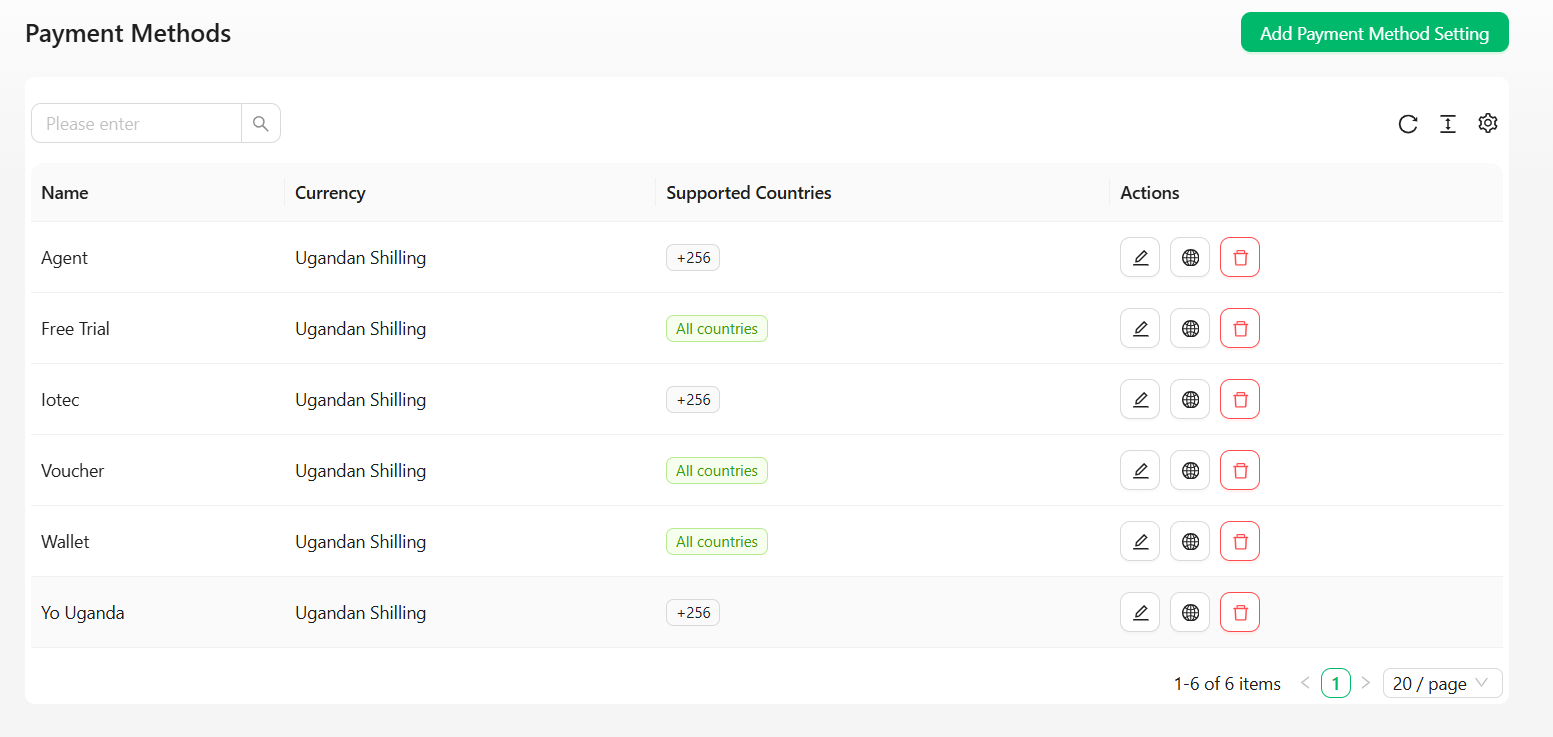 Enable and configure the payment channels your customers can use to buy internet.
## Columns
| Column | Description |
| ------------------- | ----------------------------------------------------------------------------------------- |
| Name | The configured payment method's display name |
| Currency | The currency this method is set up to charge in |
| Supported Countries | Which countries can use this method — either specific country codes, or **All countries** |
## Row actions
| Icon | Action | Description |
| ------ | --------------------------- | --------------------------------------------------------- |
| Pencil | **Edit** | Update the method's currency, locations, or credentials |
| Globe | **Set supported countries** | Restrict (or open up) which countries can use this method |
| Trash | **Delete** | Remove the payment method configuration |
## Available payment gateways
SoftISP supports the following payment gateways out of the box:
| Gateway | Notes |
| ------------ | ------------------------------------------------------------------------------------------------------------------ |
| Agent | Payments collected in person by an [agent](/agents/agent-list) |
| Cash | Manual cash payments — doesn't require per-location setup (see note below) |
| Flutterwave | Card and mobile money aggregator |
| Free Trial | Grants free access instead of charging — see [Creating a Free Package](/internet/packages#creating-a-free-package) |
| Iotec | Mobile money aggregator |
| PesaPal | Card and mobile money aggregator |
| Relworx | Mobile money aggregator |
| SoftPayments | Zabbuli Systems' own payment processor — see note below |
| Voucher | Pre-paid access codes — see [Vouchers](/internet/vouchers) |
| Wallet | Internal wallet balance |
## Adding a payment method
Enable and configure the payment channels your customers can use to buy internet.
## Columns
| Column | Description |
| ------------------- | ----------------------------------------------------------------------------------------- |
| Name | The configured payment method's display name |
| Currency | The currency this method is set up to charge in |
| Supported Countries | Which countries can use this method — either specific country codes, or **All countries** |
## Row actions
| Icon | Action | Description |
| ------ | --------------------------- | --------------------------------------------------------- |
| Pencil | **Edit** | Update the method's currency, locations, or credentials |
| Globe | **Set supported countries** | Restrict (or open up) which countries can use this method |
| Trash | **Delete** | Remove the payment method configuration |
## Available payment gateways
SoftISP supports the following payment gateways out of the box:
| Gateway | Notes |
| ------------ | ------------------------------------------------------------------------------------------------------------------ |
| Agent | Payments collected in person by an [agent](/agents/agent-list) |
| Cash | Manual cash payments — doesn't require per-location setup (see note below) |
| Flutterwave | Card and mobile money aggregator |
| Free Trial | Grants free access instead of charging — see [Creating a Free Package](/internet/packages#creating-a-free-package) |
| Iotec | Mobile money aggregator |
| PesaPal | Card and mobile money aggregator |
| Relworx | Mobile money aggregator |
| SoftPayments | Zabbuli Systems' own payment processor — see note below |
| Voucher | Pre-paid access codes — see [Vouchers](/internet/vouchers) |
| Wallet | Internal wallet balance |
## Adding a payment method
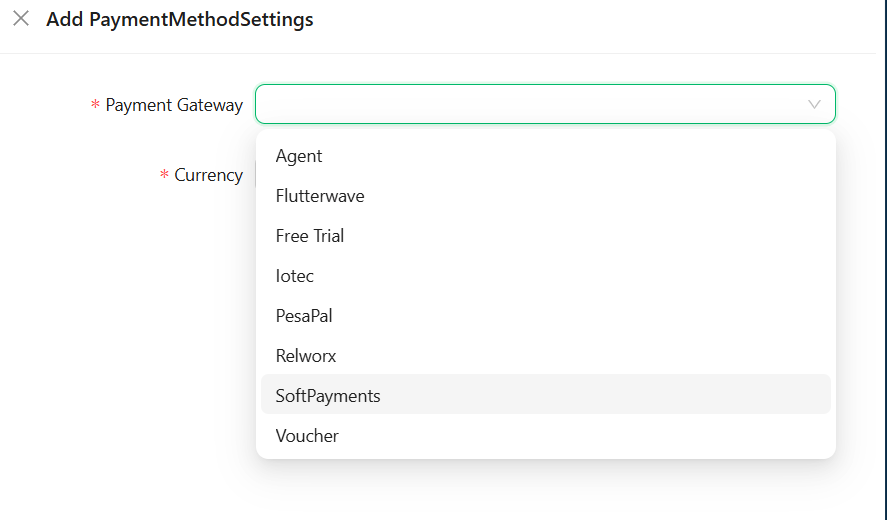 Click **Add Payment Method Setting** in the top right of the Payment Methods page.
* **Payment Gateway**\* — choose from the [available gateways](#available-payment-gateways) above. Once saved, the gateway can't be changed on this configuration — you'd need to delete it and add a new one.
* **Currency**\* — defaults to your company's currency, but can be changed per method.
For every gateway except **Cash**, a **Locations** field appears — select which of your [locations](/location/location) have this payment method enabled. Cash doesn't need this since it isn't location-gated.
If the gateway requires API credentials, a **Credentials** card appears with fields specific to that gateway (API keys, secrets, etc.). Password-type fields are masked as you type.
**SoftPayments** is the exception — SoftISP automatically creates or reuses your company's till from your company profile. There's no API key, webhook key, or till-linking to fill in manually.
Click **Save** to activate the payment method.
Once a payment method is saved, its **Payment Gateway** selection and **Credentials** fields become locked — they display but can no longer be edited. Only **Currency** and **Locations** remain editable afterward. To change credentials, delete the method and re-add it.
## Restricting supported countries
By default, a new payment method is available to customers from any country. To restrict it:
Click the **globe icon** on the payment method's row.
* Leave **Available in all countries** checked to allow any country, or
* Uncheck it and enter specific country calling codes (e.g. `+256` for Uganda, `+254` for Kenya)
Click **Save** to apply the restriction.
## Charge Customer
### Understanding mobile money charges
When customers pay via mobile money (Airtel, MTN, etc.) through integrators like IOTEC or Relworx, telecom providers charge **both the customer and the integrator**:
* **Customer is charged** the base amount + mobile money fee
* **Integrator is charged** a separate percentage (typically 2%)
* **SoftISP does not retain** the mobile money charge
**Example:**
* Customer wants to pay: **1,000 UGX**
* Customer sees charge: **1,041 UGX** (41 UGX mobile money fee)
* Telecom charges integrator: **20 UGX** (2% integrator fee)
### Pushing the charge to the customer
If you want to pass the mobile money charge to the customer instead of absorbing it, you can charge them the full amount including the telecom fee.
**When to use this:**
* Customer is aware of and accepts the mobile money fee
* Your pricing model passes fees to the customer
* You want to maintain your margin without absorbing telecom charges
Click **Add Payment Method Setting** in the top right of the Payment Methods page.
* **Payment Gateway**\* — choose from the [available gateways](#available-payment-gateways) above. Once saved, the gateway can't be changed on this configuration — you'd need to delete it and add a new one.
* **Currency**\* — defaults to your company's currency, but can be changed per method.
For every gateway except **Cash**, a **Locations** field appears — select which of your [locations](/location/location) have this payment method enabled. Cash doesn't need this since it isn't location-gated.
If the gateway requires API credentials, a **Credentials** card appears with fields specific to that gateway (API keys, secrets, etc.). Password-type fields are masked as you type.
**SoftPayments** is the exception — SoftISP automatically creates or reuses your company's till from your company profile. There's no API key, webhook key, or till-linking to fill in manually.
Click **Save** to activate the payment method.
Once a payment method is saved, its **Payment Gateway** selection and **Credentials** fields become locked — they display but can no longer be edited. Only **Currency** and **Locations** remain editable afterward. To change credentials, delete the method and re-add it.
## Restricting supported countries
By default, a new payment method is available to customers from any country. To restrict it:
Click the **globe icon** on the payment method's row.
* Leave **Available in all countries** checked to allow any country, or
* Uncheck it and enter specific country calling codes (e.g. `+256` for Uganda, `+254` for Kenya)
Click **Save** to apply the restriction.
## Charge Customer
### Understanding mobile money charges
When customers pay via mobile money (Airtel, MTN, etc.) through integrators like IOTEC or Relworx, telecom providers charge **both the customer and the integrator**:
* **Customer is charged** the base amount + mobile money fee
* **Integrator is charged** a separate percentage (typically 2%)
* **SoftISP does not retain** the mobile money charge
**Example:**
* Customer wants to pay: **1,000 UGX**
* Customer sees charge: **1,041 UGX** (41 UGX mobile money fee)
* Telecom charges integrator: **20 UGX** (2% integrator fee)
### Pushing the charge to the customer
If you want to pass the mobile money charge to the customer instead of absorbing it, you can charge them the full amount including the telecom fee.
**When to use this:**
* Customer is aware of and accepts the mobile money fee
* Your pricing model passes fees to the customer
* You want to maintain your margin without absorbing telecom charges