

Tabs Overview
The Transactions page includes four tabs for tracking different aspects of your financial flow:Balances
View current balances in all your collection accounts (Cash, Mobile Money, Bank).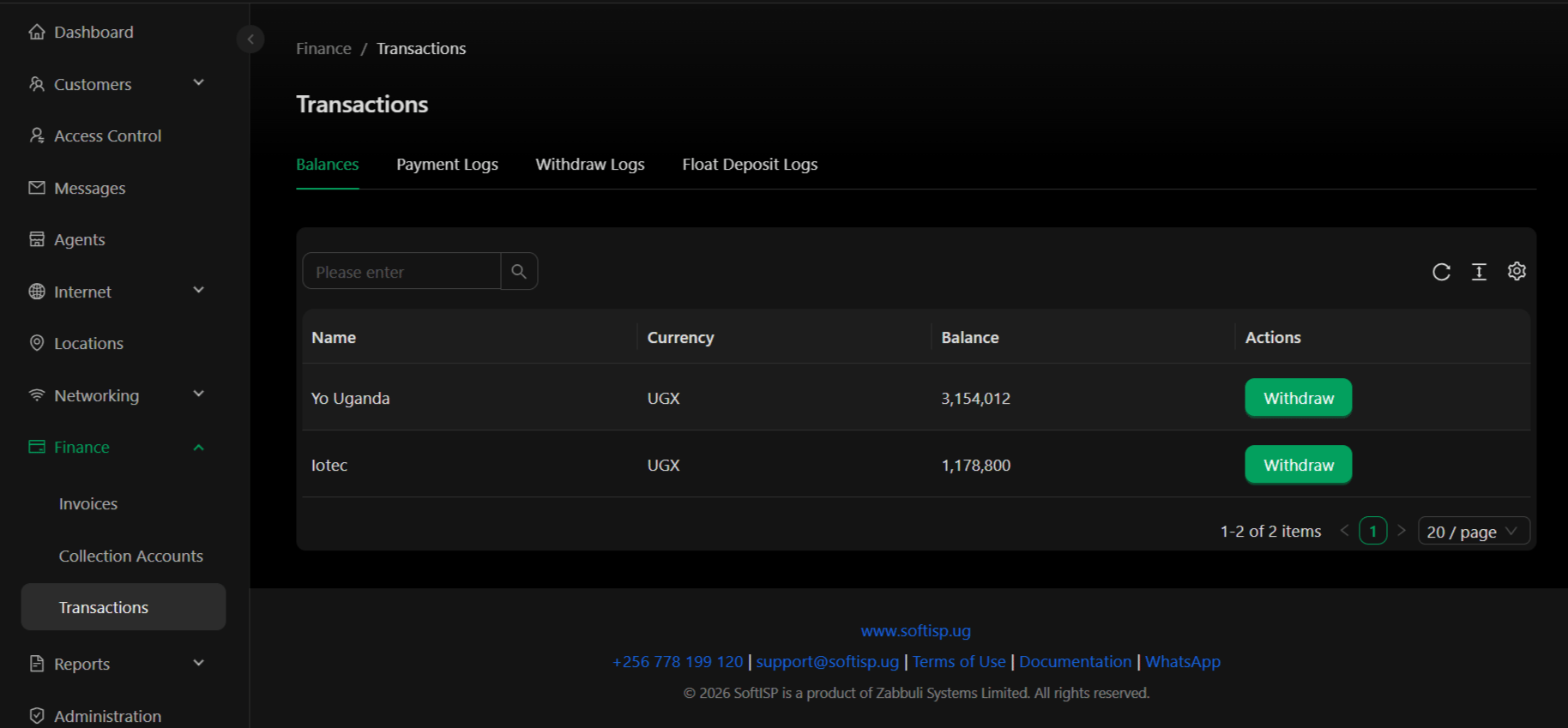
Actions:
- Withdraw – Transfer funds from collection account to a bank account or get cash. Click the “Withdraw” button to initiate a withdrawal request.
Payment Logs
Complete history of all payments received from customers, including payment method, amount, and charges.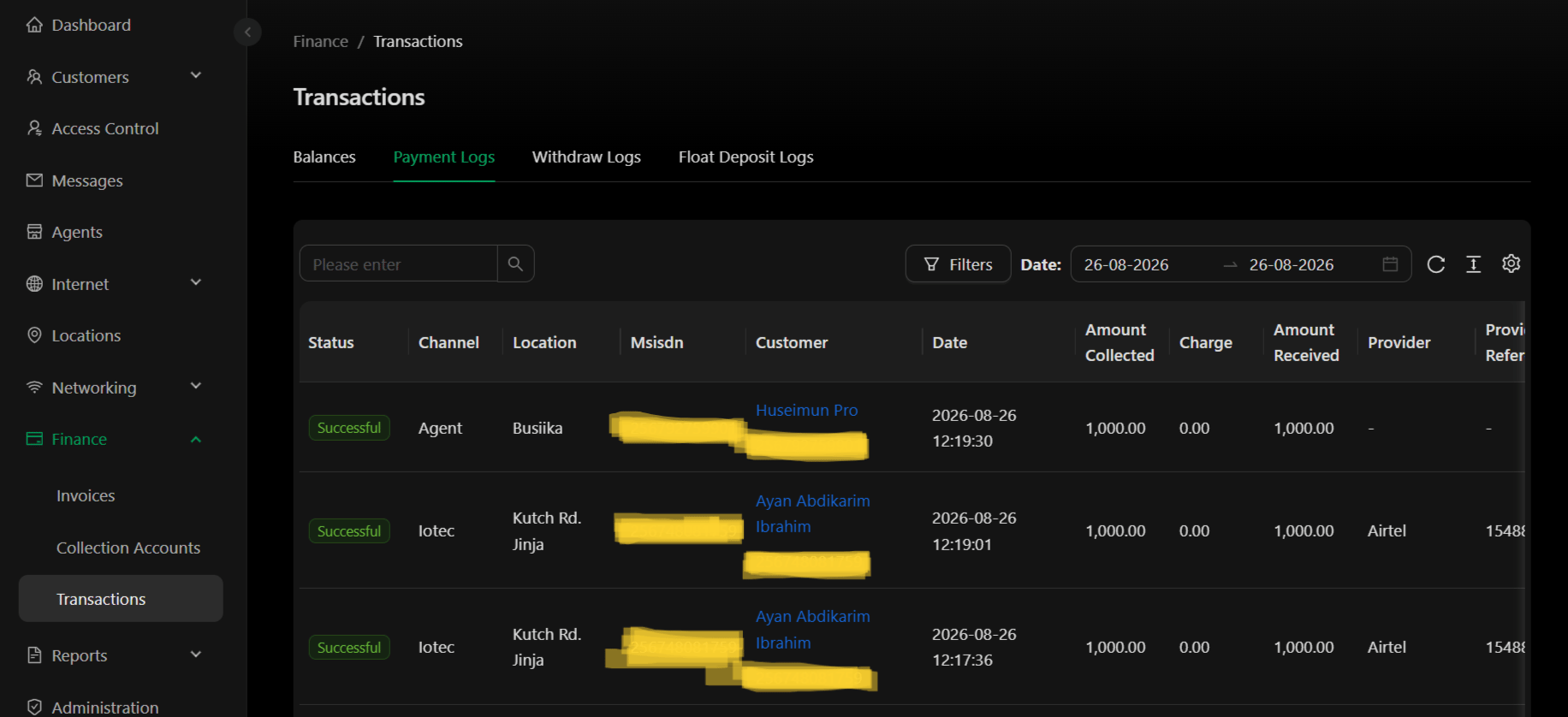
Withdraw Logs
History of all withdrawals and transfers from collection accounts.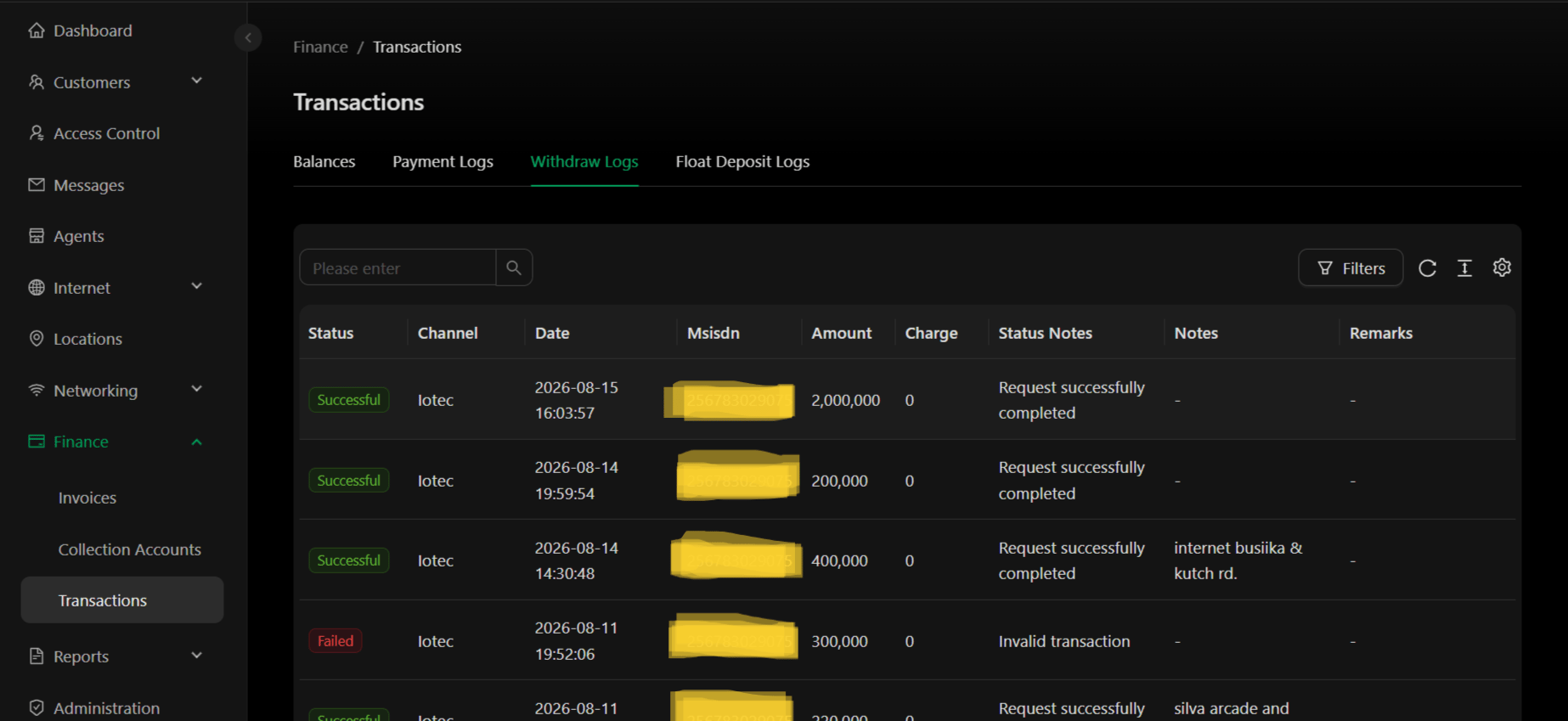
Key Concepts
Collection Account Balances – Current funds available in each collection account. Use the Withdraw button to move money to your bank account or to get cash. Payment Logs – Every customer payment is logged here. Track which channel (agent, provider, location) received each payment and any fees charged. Withdrawals – Transfers from collection accounts to your bank account/cash. View the history and status of all withdrawal requests. Statuses:- Successful – Transaction completed successfully
- Failed – Transaction could not be completed
- Pending – Awaiting processing
- In Progress – Currently being processed
Actions
- View Balances – Check available funds in all collection accounts
- Initiate Withdrawal – Click “Withdraw” button to transfer funds from a collection account to your bank
- Filter Transactions – Filter by date, status, channel, or amount
- Export Logs – Export payment or withdrawal logs to Excel
- View Details – Click on a transaction row for detailed information
Payment Logs show incoming customer payments. Withdraw Logs show outgoing transfers to your bank. Use the Balances tab to see funds available for withdrawal.