

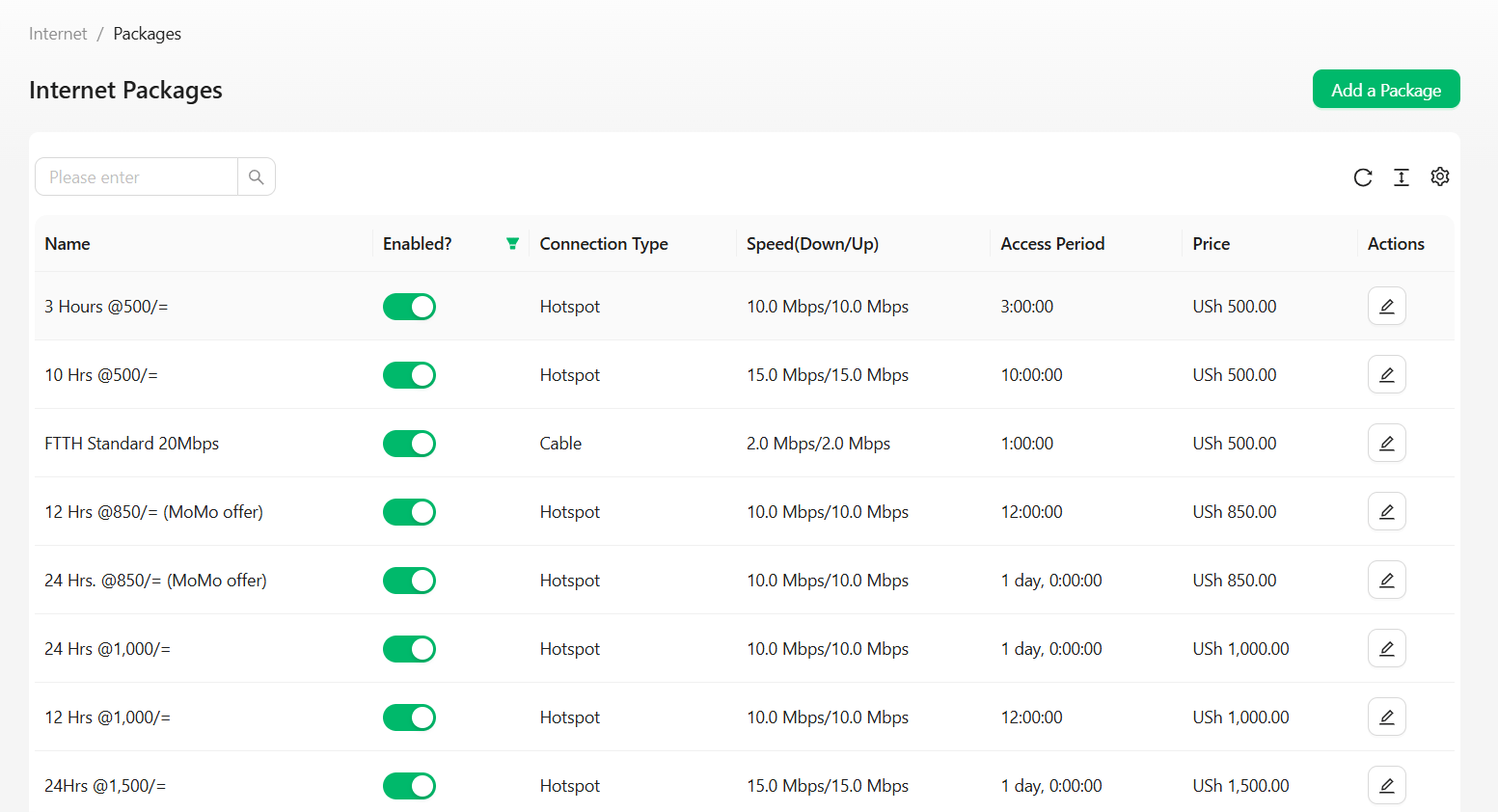
Package attributes
Creating a package
This assumes you’ve already created an account on SoftISP and created a Location — a package won’t save without one. You’ll also need at least one payment method enabled (Agent, Mobile Money, or Wallet) so customers can actually buy internet through the package.
1
Open Add Package
On the Packages page (reachable on Internet in the left menu), click Add Package on the top right.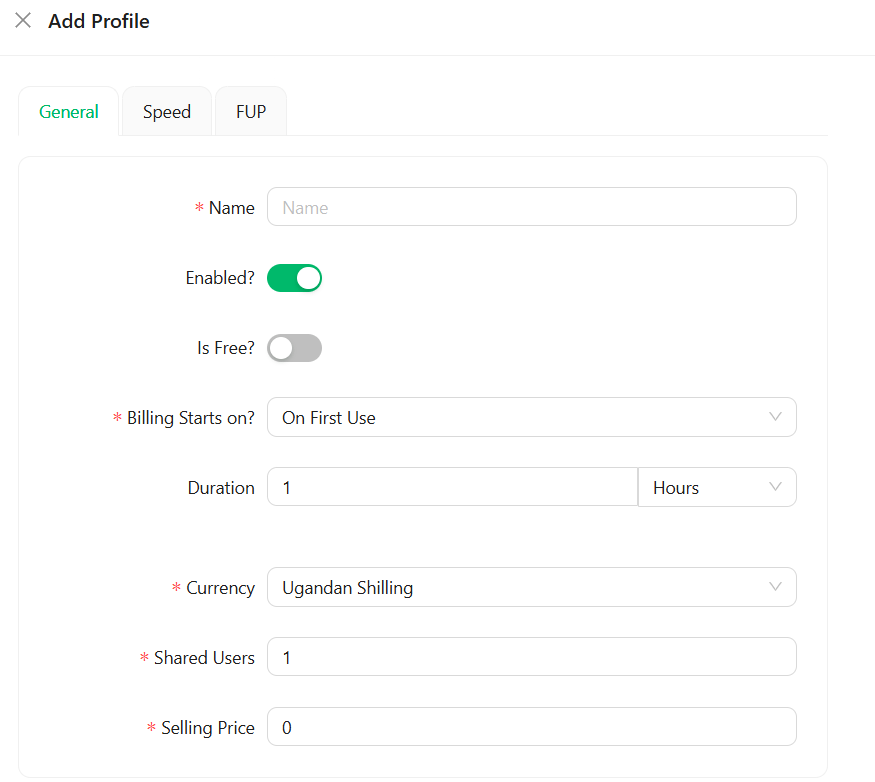
2
Fill out the General tab
Pay attention to every red-star field:
- Name — a meaningful name for the package
- Enabled? — turn on (if disabled, the package won’t show on the splash page for customers to buy)
- Is Free? — leave this off unless you’re creating a free package
- Billing Starts On? — choose On First Use for hotspot packages, or On Payment for PPPoE/cable customers
- Duration — a whole number plus its unit. This determines how long the customer stays connected after purchase, after which they’re automatically disconnected
- Currency — your country’s currency
- Shared Users —
1for a single device; increase this if you want multiple devices to share the package simultaneously - Selling Price — the price of this package
3
Set availability
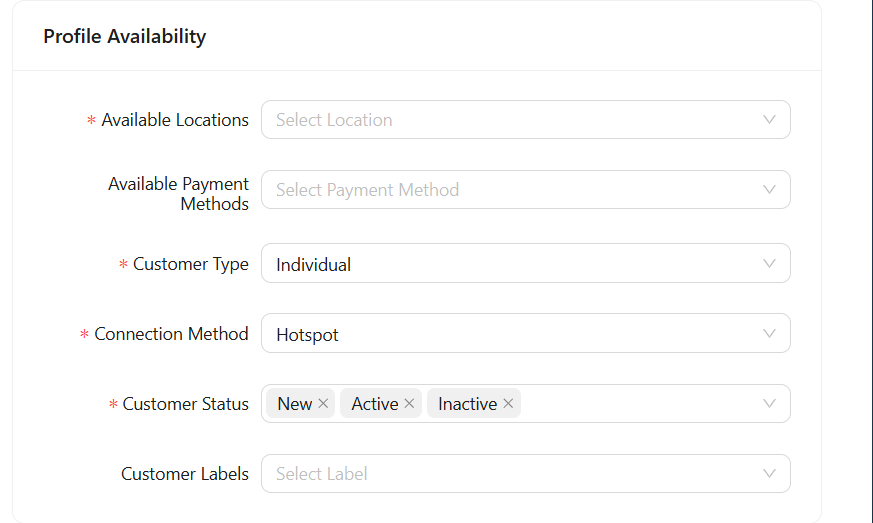
- Available Locations — the hotspot locations where this package should be available
-
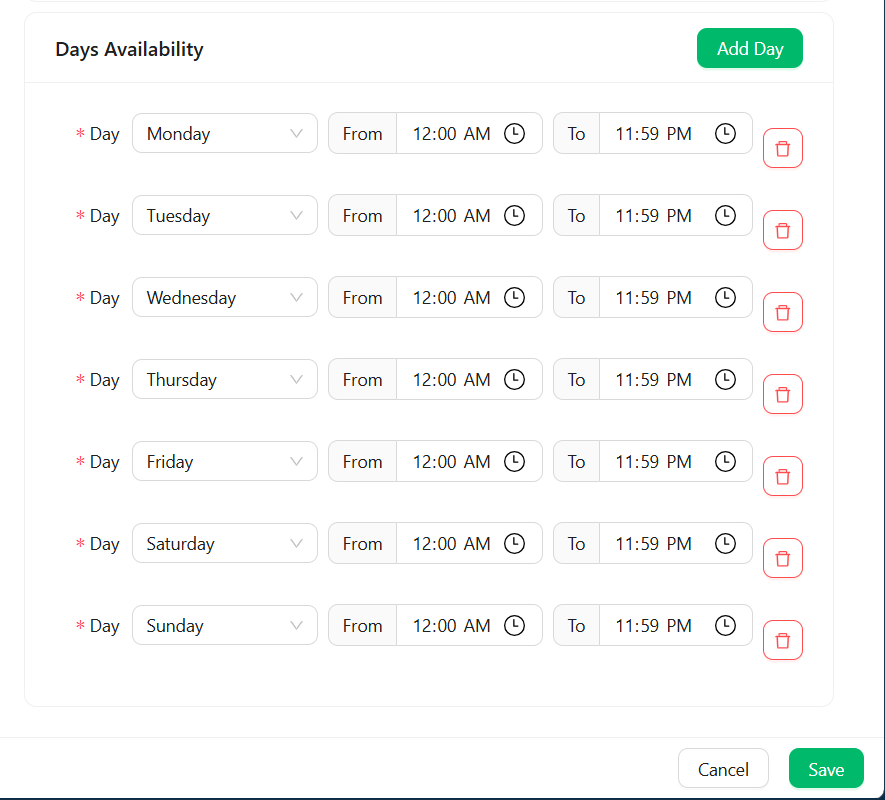
Days Availability — all days are selected by default; narrow this down to specific days and time ranges if needed
4
Save
Click Save to close the form.
Creating a free package
There are times you need to give free internet access to your WiFi users right at the captive portal login screen — for example a free trial window, or a promotional period.1. Enable the Free Trial payment method
1
Open Payment Gateways
On the left menu, click Settings → Payment Gateways.
2
Add the Free Trial method
Click Add Payment Method, then on Payment Gateway select Free Trial.
3
Set currency and locations
- Currency — select your country’s currency
- Locations — select the locations where you want the free package to work
4
Save
Click Save to save the changes.